 COME
COMECOME Preferences and Android Permissions Are Different Controls
COME preferences change behaviour inside the app. Android permissions control access to device capabilities. Review them in their own locations instead of treating one set of controls as the other.
Identify an in-app preference
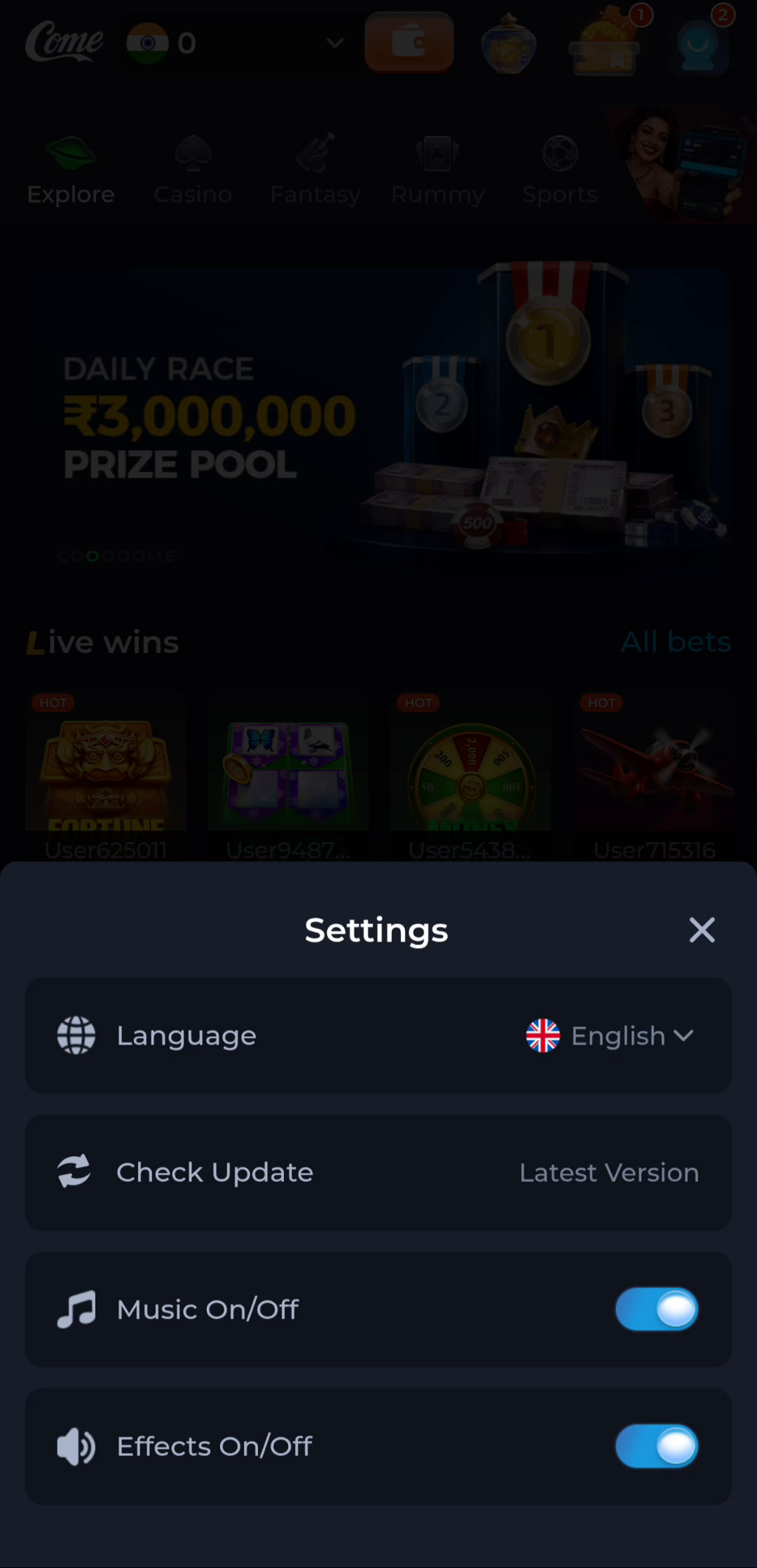
The Settings screenshot includes Language, Check Update, Music and Effects. These visible controls relate to the interface, update checking and sound. They are not a list of Android permissions and do not describe every capability the installed package may request.
Find the Android app information
Use your phone’s app settings to inspect the installed application and its permissions. Menu names vary across devices and Android versions. Confirm you have selected the intended app rather than a similarly named item or a browser shortcut.
Review requests when they appear
Read which capability a prompt requests and consider whether it fits the feature you are trying to use. A request appearing after installation is still a separate decision. Do not grant unrelated access merely to dismiss a dialog and continue browsing.
Do not use permissions to bypass an installation warning
An installer or Google Play Protect warning concerns a different issue from sound or language preferences. Keep protections enabled and investigate the specific message. A device managed by an organisation may have restrictions that only its administrator should change.
Describe the right control when asking for help
Say whether the problem is an in-app switch, an Android permission dialog or a blocked installation. Include the wording you see without revealing private data. That distinction makes it easier to locate the relevant instructions and avoid unnecessary changes to the app.